 Help Center
What are the bleed and safe zones?
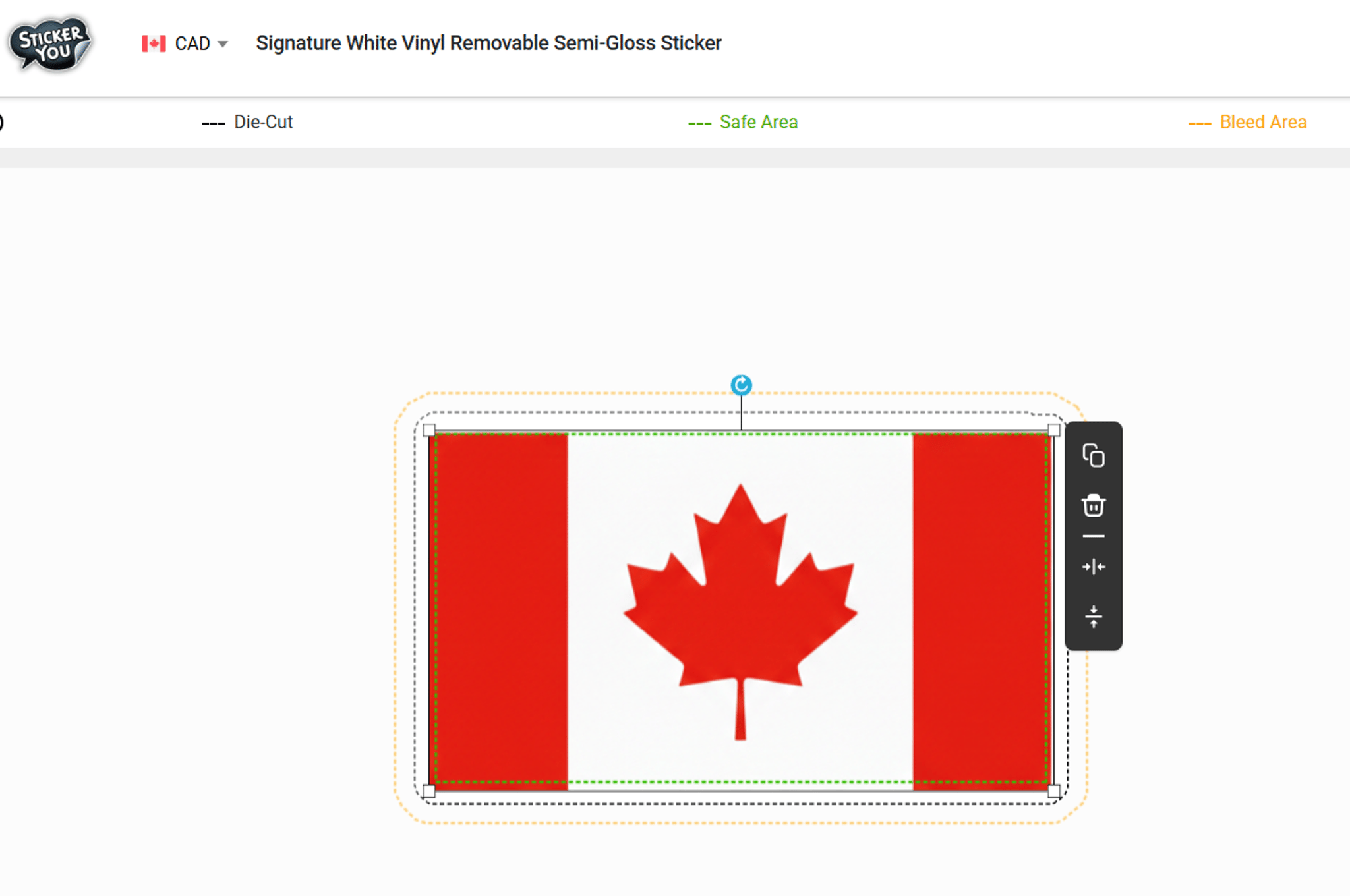
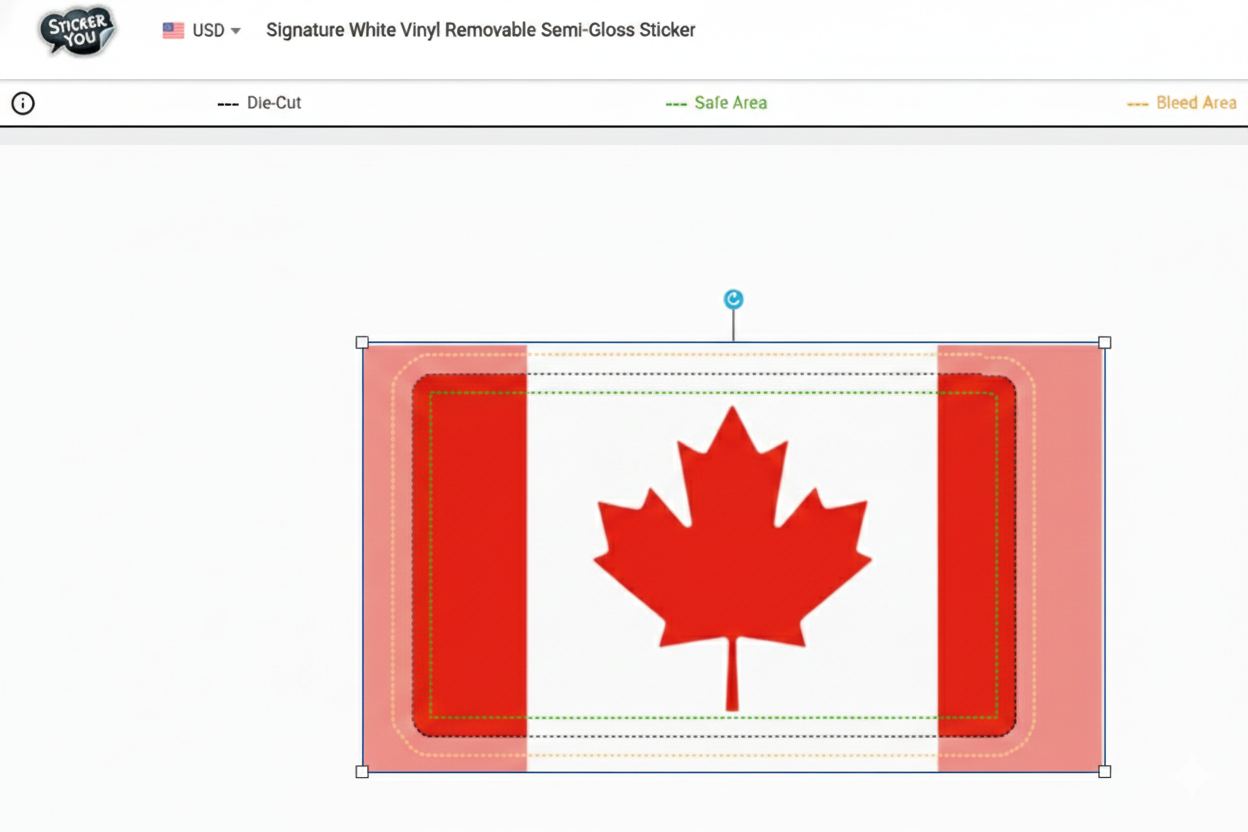
Within the editor are three visible lines. Safe area, Bleed area and Sticker Die-cut, but what do they mean?
Safe Zone
Our first line is the safe zone or the “safe area” designated by the green line inside the die-cut. Anything within this line is ensured to not be cut off or removed during printing. We recommend keeping everything within this line except for bleed.
Sticker Die-Cut
Our second line is our sticker die-cut. This will be the line your sticker is cut along. This may be subject to changes or editing by our art team. By request or our digression if the preloaded cut line is abnormal.
Bleed Zone
The bleed zone is designated by an orange line outside the die-cut. If you have a colour or extended design you would like to reach the edge of the sticker, please ensure it reaches this line. Die-cuts do shift a bit at the time of printing, and this bleed zone ensures that the colour goes all the way to the edge on all sides. Without it, you may have a small area of white on one side of your sticker.
Die-Cut Sticker Tips
Quick tip: Change the background of your image from white to transparent for a more accurate die-cut. Note that the smaller you set your sticker size, the less intricate your die-cut will become. This will result in your cut line being smoothed out.
Editor Note: We use an algorithm that maps the outline of your image. It automatically calculates the die-cut line to follow and contour cuts your uploaded image. It looks for small changes of colours within the pixels on your uploaded image.
At a smaller size, there are fewer pixels required to display your image. The opposite is also true, at larger sizes, there will be more. If one of the pixels is off-white, the editor will see this and believe it is part of your design. This will expand the cut line to accommodate the off-colour pixel, resulting in an odd or too-large of a die-cut.
Watch a video tutorial explaining Bleed and Safe Zones and the eyedropper button to fill/eliminate your background here.
Get started on your custom stickers, labels, tattoos and iron-ons by visiting the Sticker Maker.